Best Free PDF Compressor Reduce PDF Size Without Quality
Published June 9, 2026
Looking for the best free PDF compressor? Learn how to reduce PDF file size without losing quality using fast and secure online tools. This guide covers the benefits of PDF compression, step-by-step instructions, and tips to optimize documents for sharing, storage, and faster uploads.
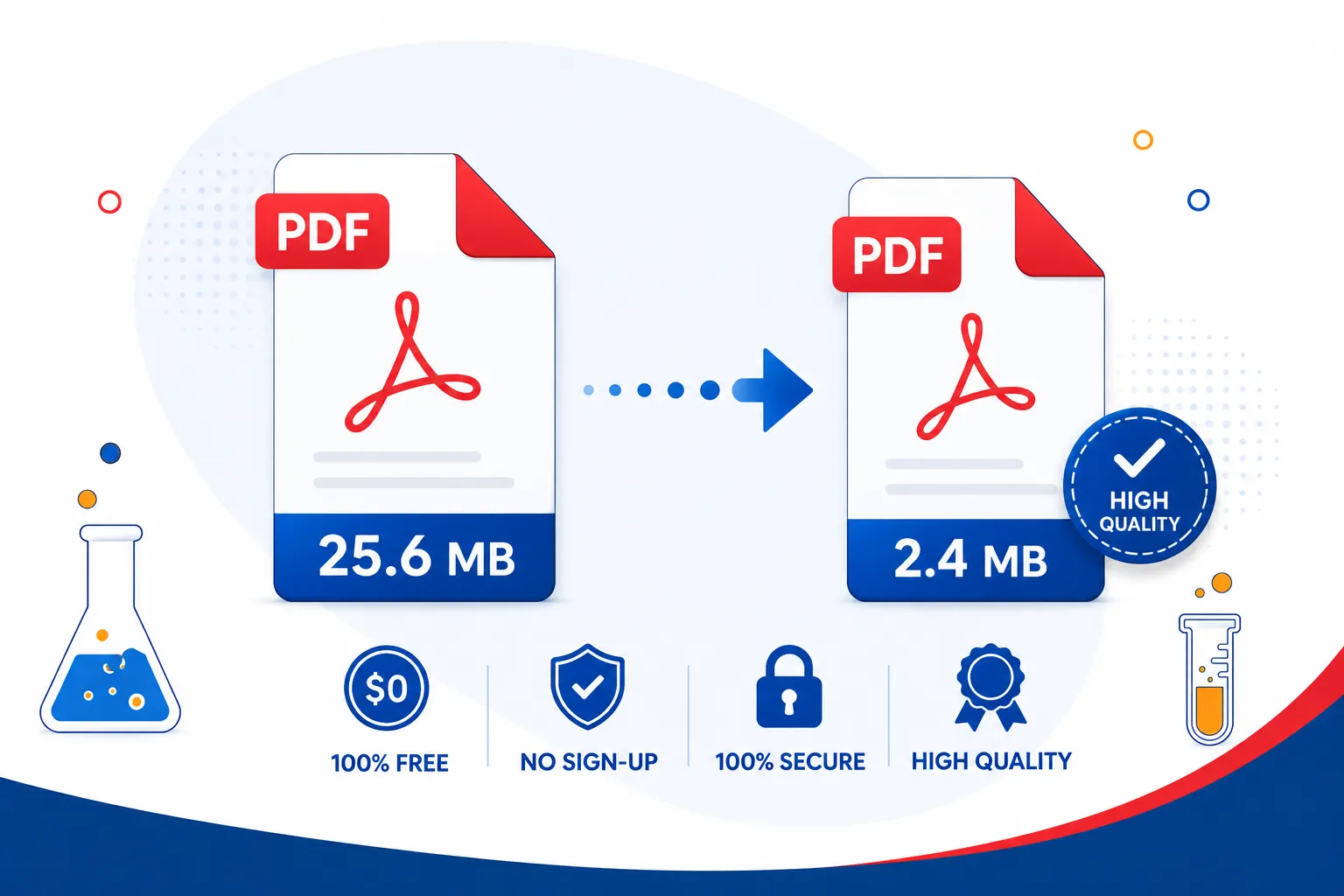
We've all been there: you try to email a PDF and get the dreaded "file too large" error. Or you upload a document to a portal that has a strict size limit, and your file simply won't go through. The solution? Compress the PDF. In this complete guide, we'll walk you through everything you need to know about how to compress a PDF, what causes large file sizes, and how to use a compress PDF free tool to reduce your document in seconds without losing any quality.
What Does It Mean to Compress a PDF?
Compressing a PDF is the process of reducing its file size by optimizing its internal data, primarily images, embedded fonts, and structural elements. Unlike deleting content, a proper PDF compress keeps all your text, images, and formatting intact. The document simply becomes lighter and easier to share.
Here's what typically makes a PDF large in the first place:
High-resolution images or photographs
Multiple embedded fonts
Scanned pages stored as raw image data
Unused metadata and hidden objects
A good compressor compress PDF tool targets all of these without visibly degrading what you see on screen.
Why You Need to Compress PDF Files
Whether you're a student, professional, or business owner, compressing PDF documents is a task that comes up regularly. Here are the most common reasons people need to compress a PDF file:
Email attachments Most email providers cap attachments at 10–25 MB. Compressing brings large PDFs within limits instantly.
Website uploads Smaller PDFs load faster and improve your site's SEO and user experience.
Cloud storage Reducing file sizes means more documents fit in your Google Drive or Dropbox without upgrading storage.
Sharing on mobile Smaller files send faster and consume less mobile data.
Submission portals Government forms, university applications, and job portals often enforce strict file size limits.
No matter the reason, being able to compress PDF file size quickly and for free is a skill that pays off every single day.
How to Compress a PDF: Step-by-Step Using SmartPDFLab
The fastest and easiest way to reduce your PDF compress needs is through a browser-based tool no software installation, no account, no cost. SmartPDFLab's PDF Compressor handles the entire process in seconds.
Step 1: Open the Compress PDF Tool
Head to smartpdflab and click on the Compress PDF tool. It opens directly in your browser, no sign-up required.
Step 2: Upload Your PDF File
Click "Choose File" or drag and drop your PDF into the upload area. You can also pull files directly from Google Drive or Dropbox. The tool supports files up to large sizes, making it suitable for both lightweight documents and heavy image-rich reports.
Step 3: Select Your Compression Level
This is where SmartPDFLab gives you control. Choose from:
Low Compression Minimal size reduction, maximum quality preserved. Best for print-ready documents.
Recommended Compression: The sweet spot. Noticeable size reduction with no visible quality loss. Ideal for most everyday use cases.
High Compression Maximum size reduction for when you absolutely need a tiny file. Works best when sharing informally or storing digitally.
For most users, Recommended Compression is the right choice. It balances compressed pdf file efficiency with document clarity perfectly.
Step 4: Click "Compress PDF"
Hit the button and let the tool do its work. Most files are processed within a few seconds. You'll see the original file size alongside the new compressed size so you know exactly how much space you've saved.
Step 5: Download Your Compressed PDF
Click Download to save your compressed file. You can also save it directly to cloud storage. That's it your compress pdf online task is complete.
Understanding Compression Levels: Quality vs. File Size
One of the most common questions when compressing the PDF is: "Will it look different after compression?" The honest answer depends on the compression level you choose and what's in your document.
Text-Heavy PDFs
Documents that are mostly text compress extremely well often reducing by 40–70% with zero visible quality loss. The text remains sharp and fully readable at any zoom level.
Image-Heavy PDFs
PDFs containing photographs or high-resolution graphics see the most dramatic size reductions. However, aggressive compression can slightly reduce image sharpness. Using the Recommended level keeps images clear while still cutting file size significantly.
Scanned PDFs
Scanned documents are essentially stored as images, so they're often the largest files. Compressing PDF documents that are scanned works best at moderate compression levels. If you need searchable text from a scanned PDF, consider running OCR first, which can also help reduce size.
Tips for Getting the Best Results When Compressing PDFs
Knowing how to compress PDF files is one thing: getting the best possible outcome takes a bit of strategy. Here are expert tips:
Choose the right compression level for your purpose. If you're submitting a legal document, use Low or Recommended to keep it crisp. If you're archiving an old newsletter, High compression is fine.
Compress before merging. If you plan to merge multiple PDFs into one large document, compress each file individually first. This keeps your final merged file manageable in size.
Avoid double-compressing. Compressing a PDF that has already been compressed can reduce quality without meaningfully reducing size. Always start from the original file when possible.
Use cloud-source uploads for large files. If your PDF is already stored in Google Drive or Dropbox, upload directly from there to avoid slow browser uploads.
Check the output. Always open and scroll through the compressed PDF before sending it. Spot-check images and tables to confirm the quality meets your standards.
Is It Safe to Compress PDF Files Online?
Security is a legitimate concern when uploading documents online, especially for contracts, financial records, or personal files. Here's what to look for in a trustworthy compress pdf free tool:
Encrypted connections (HTTPS/TLS) Ensures your file is protected during upload and download
Automatic file deletion Your document should be removed from the server after processing, with no copies retained
No account required Tools that don't require sign-up reduce the risk of your data being stored or associated with a profile
Clear privacy policy A reputable tool will explicitly state what happens to your files
SmartPDFLab uses encrypted connections and automatically deletes all uploaded files after your session ends, ensuring your sensitive documents remain private.
For further guidance on PDF security standards, the PDF Association is the authoritative resource used by developers and enterprises worldwide.
Frequently Asked Questions
1. Does compressing a PDF reduce its quality?
Not noticeably when using Recommended compression. Text remains sharp, and images lose very little clarity. Only Extreme/High compression when used on image-heavy files may show minor softening on photos.
2. How much can I reduce a PDF file size?
It depends on the content. Text-heavy PDFs often compress by 40–70%. Image-rich PDFs can compress by 60–80% or more. Scanned PDFs typically compress by 30–60%.
3. Can I compress a PDF for free without signing up?
Yes. SmartPDFLab compress PDF online tool is completely free and requires no account or registration.
4. Will compressing a PDF affect its fonts?
No. A proper compressor compress PDF tool preserves all embedded fonts. Text will look identical before and after compression.
5. Can I compress multiple PDFs at once?
SmartPDFLab supports batch compression, so you can process multiple files in one session without repeating the steps for each document.
6. What's the difference between lossless and lossy PDF compression?
Lossless compression reorganizes data without discarding anything; it results in a smaller file with no quality change, but the reduction is modest. Lossy compression reduces image resolution and quality settings to achieve larger size reductions. Most online tools default to a balanced lossy approach that's imperceptible to the human eye.
Final Thoughts
Whether you're trying to email a report, upload documents to a portal, or simply keep your storage tidy, knowing how to compress PDF files quickly and without losing quality. The best tools make it effortless: upload, choose a level, compress, and download.
SmartPDFLab free PDF compressor gives you the power to reduce PDF file sizes in seconds with no sign-up, no watermarks, and no usage limits. It's the simplest, most reliable way to compress PDF file size without compromising on quality.
Ready to shrink your PDF? Try SmartPDFLab's Free PDF Compressor Now
Want to do more with your PDFs? SmartPDFLab also offers tools to Sign PDFs, split pages, and convert files all free, all in your browser.